Track 0 · Getting started · 0-4
First app: live captions
- An approved SymbAIR account and a project you own. See Account and project (Korean).
- A computer with a microphone and Chrome. To use a headset, install and connect SymbAIR Runner (Korean) first.
Load the template and deploy
- 1
Select Choose a project and start, then select Start in this project for a project you own.
- 2
In the studio, select Start from this design to load the Live captions template.
- 3
On the canvas, check that speech recognition is connected to the received results in the device output. The template uses that result for the captions.
- 4
Open App settings in the top bar. Under Device, choose Browser or the headset model you will use.
- 5
Select Deploy at the top right. Choose the target devices if the dialog lists them, then select Deploy in the dialog to confirm.
- 6
Check for a Deployed as version confirmation with a version number.
Need help with this step?
- The device says No app is deployed to this project.
- Confirm the second Deploy button in the dialog. Check that the browser device and studio use the same project.
Try it in a browser
The browser device is in trial operation. A server may need additional configuration to support it.
- 7
Open the browser device page in a new tab.
- 8
Under Project, choose the project you deployed to and select Start as a device. Project owners can start without a pairing code.
- 9
Allow microphone access when Chrome asks, then say a sentence out loud.
- 10
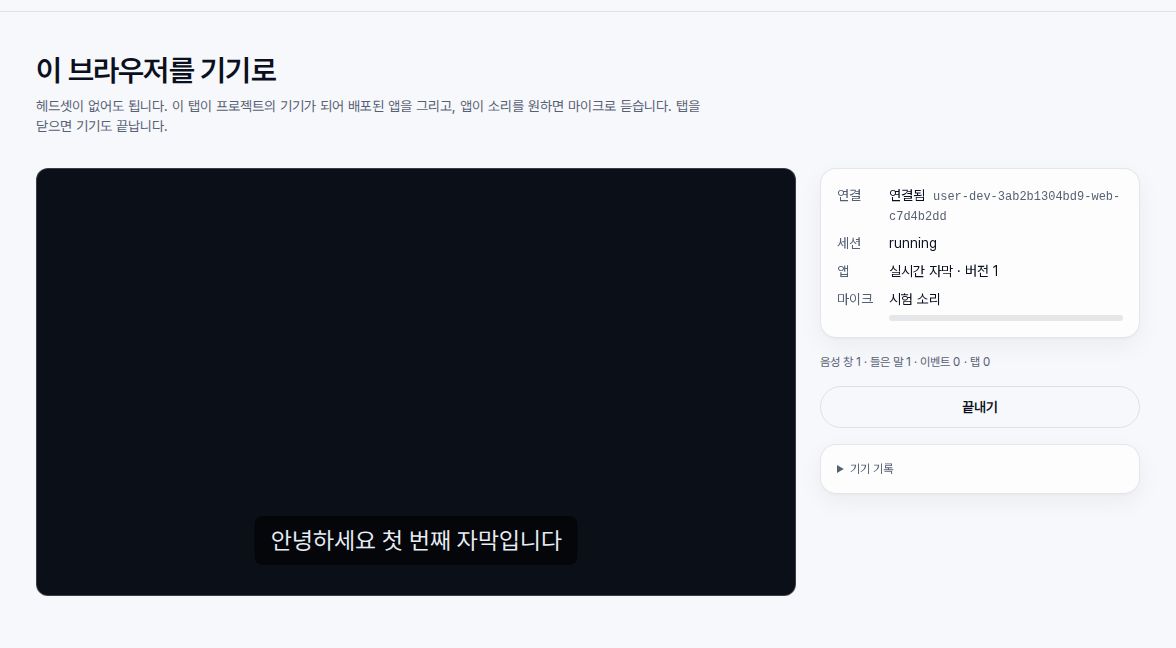
Check for captions at the bottom of the device screen. When finished, select End to disconnect the browser device.
Need help with this step?
- Chrome shows that the microphone is unavailable.
- Open the site controls beside the address bar, allow microphone access, and reload the browser device page.
- The page says a secure address (wss) is missing.
- Try the app on a headset or try again after the server operator configures the LiveKit address.
Try it on a Meta Quest 3
- 11
If needed, follow the device setup guide (Korean) to install Runner and connect the headset to your project.
- 12
Confirm Meta Quest 3 is selected in the studio, then select your headset when you deploy.
- 13
Put on the headset and say a sentence. Check for captions at the bottom of the display.
It worked if you see this
✓ Your sentence appears at the bottom of the device screen and disappears after six seconds.
Troubleshooting
- The device says No app is deployed to this project.
- Confirm the second Deploy button in the dialog. Check that the browser device and studio use the same project.
- Chrome shows that the microphone is unavailable.
- Open the site controls beside the address bar, allow microphone access, and reload the browser device page.
- The page says a secure address (wss) is missing.
- Try the app on a headset or try again after the server operator configures the LiveKit address.
What you learned
- •Start an app from a template and choose its target device in the studio.
- •Deploy a version and run it on the project's browser device or headset.